首页产品文档APISaaS平台
首页
产品文档
支付产品能力自动货币转换
API
接入准备支付服务退款服务Webhook 通知
SaaS平台
ShopifyWooCommerceShoplazzaSHOPYY
  • Shopify
  • WooCommerce
  • Shoplazza
  • SHOPYY
首页/SaaS平台/WooCommerce
StablePay 开发者文档
Home
Product
API
SaaS
Login
Register
GitHub
Home
Product
API
SaaS
Login
Register
GitHub
  • SaaS 电商平台 / Platform

    • Shopify
    • WooCommerce
    • Shoplazza
    • SHOPYY

WooCommerce 安装指南

本指南帮助商家快速接入 StablePay WooCommerce 支付插件,为您的 WooCommerce 商城添加稳定币支付能力。

This guide helps merchants quickly integrate the StablePay WooCommerce payment plugin to add stablecoin payment capabilities to your WooCommerce store.

一、前置准备

1.1 环境要求

在开始接入前,请确认您的 WordPress 环境满足以下要求:

Before integration, ensure your WordPress environment meets the following requirements:

项目最低版本推荐版本
PHP7.4+8.0+
WordPress5.8+最新版
WooCommerce6.0+最新版
ItemMinimum VersionRecommended Version
PHP7.4+8.0+
WordPress5.8+Latest
WooCommerce6.0+Latest

必需的 PHP 扩展:

- cURL(用于 API 通信) - JSON(用于数据处理)
- cURL (for API communication) - JSON (for data processing)

1.2 获取 StablePay 商户账号

请联系 StablePay 服务人员为您开通商户账号。账号开通后:

  1. 登录 StablePay 商户后台
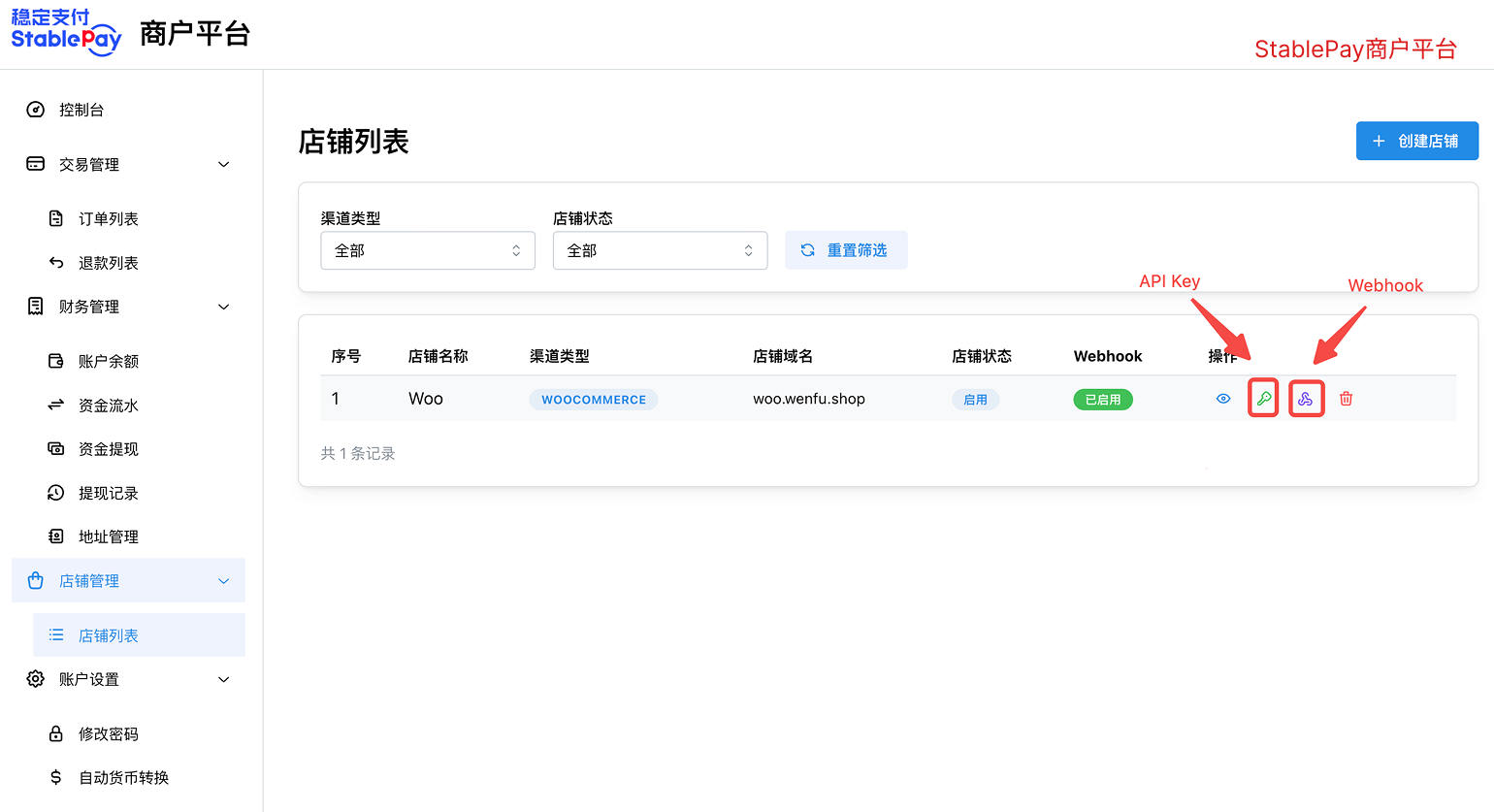
  2. 进入 店铺管理 页面,点击 [创建店铺],渠道类型 选择Woocommerce,提交后等待StablePay审核
  3. 审核通过后,您可以通过店铺列表操作,获得密钥API Key、Secret Key、Webhook Secret

Please contact StablePay support to set up your merchant account. Once your account is ready:

  1. Log in to StablePay Merchant Portal
  2. Navigate to the Store Management page and click [Create Store].Select WooCommerce as the Channel Type and submit. Please wait for StablePay's review and approval.
  3. Once approved, you can obtain your API Key, Secret Key, and Webhook Secret via the store list.

二、安装插件

2.1 获取插件包

点击下载最新版本的插件安装包:

📦 下载 stablepay-woocommerce-1.0.0.zip

Click to download the latest plugin package:

📦 Download stablepay-woocommerce-1.0.0.zip

2.2 安装方式一:WordPress 后台安装(推荐)

  1. 登录 WordPress 管理后台
  2. 进入「插件」→「安装插件」→「上传插件」
  3. 点击「选择文件」,选择 stablepay-woocommerce-x.x.x.zip
  4. 点击「现在安装」
  5. 安装完成后点击「激活插件」
  1. Log in to WordPress Admin Dashboard
  2. Go to "Plugins" → "Add New" → "Upload Plugin"
  3. Click "Choose File" and select stablepay-woocommerce-x.x.x.zip
  4. Click "Install Now"
  5. Click "Activate Plugin" after installation

2.3 安装方式二:FTP 手动安装

  1. 解压 stablepay-woocommerce-x.x.x.zip
  2. 通过 FTP/SFTP 上传解压后的 stablepay-woocommerce 目录到 wp-content/plugins/
  3. 登录 WordPress 后台,进入「插件」页面
  4. 找到「StablePay for WooCommerce」并点击「激活」
  1. Extract stablepay-woocommerce-x.x.x.zip
  2. Upload the extracted stablepay-woocommerce folder to wp-content/plugins/ via FTP/SFTP
  3. Log in to WordPress Admin and go to "Plugins"
  4. Find "StablePay for WooCommerce" and click "Activate"

三、配置插件

3.1 进入配置页面

激活插件后,通过以下方式进入配置页面:

  • 方式一:WordPress 后台 → WooCommerce → 设置 → 支付 → StablePay
  • 方式二:WordPress 后台 → 插件 → 已安装的插件 → StablePay for WooCommerce → 设置

After activation, access the configuration page via:

  • Method 1: WordPress Admin → WooCommerce → Settings → Payments → StablePay
  • Method 2: WordPress Admin → Plugins → Installed Plugins → StablePay for WooCommerce → Settings

3.2 基础设置

配置项说明建议值
启用/禁用是否在结账页面显示 StablePay 支付方式启用
支付标题结账页面显示的支付方式名称StablePay - 稳定币支付
支付描述支付方式的简要说明使用 USDT、USDC 等稳定币安全快速支付
SettingDescriptionRecommended Value
Enable/DisableShow StablePay payment method on checkoutEnabled
TitlePayment method name displayed on checkoutStablePay - Stablecoin Payment
DescriptionBrief description of the payment methodPay securely with USDT, USDC and other stablecoins

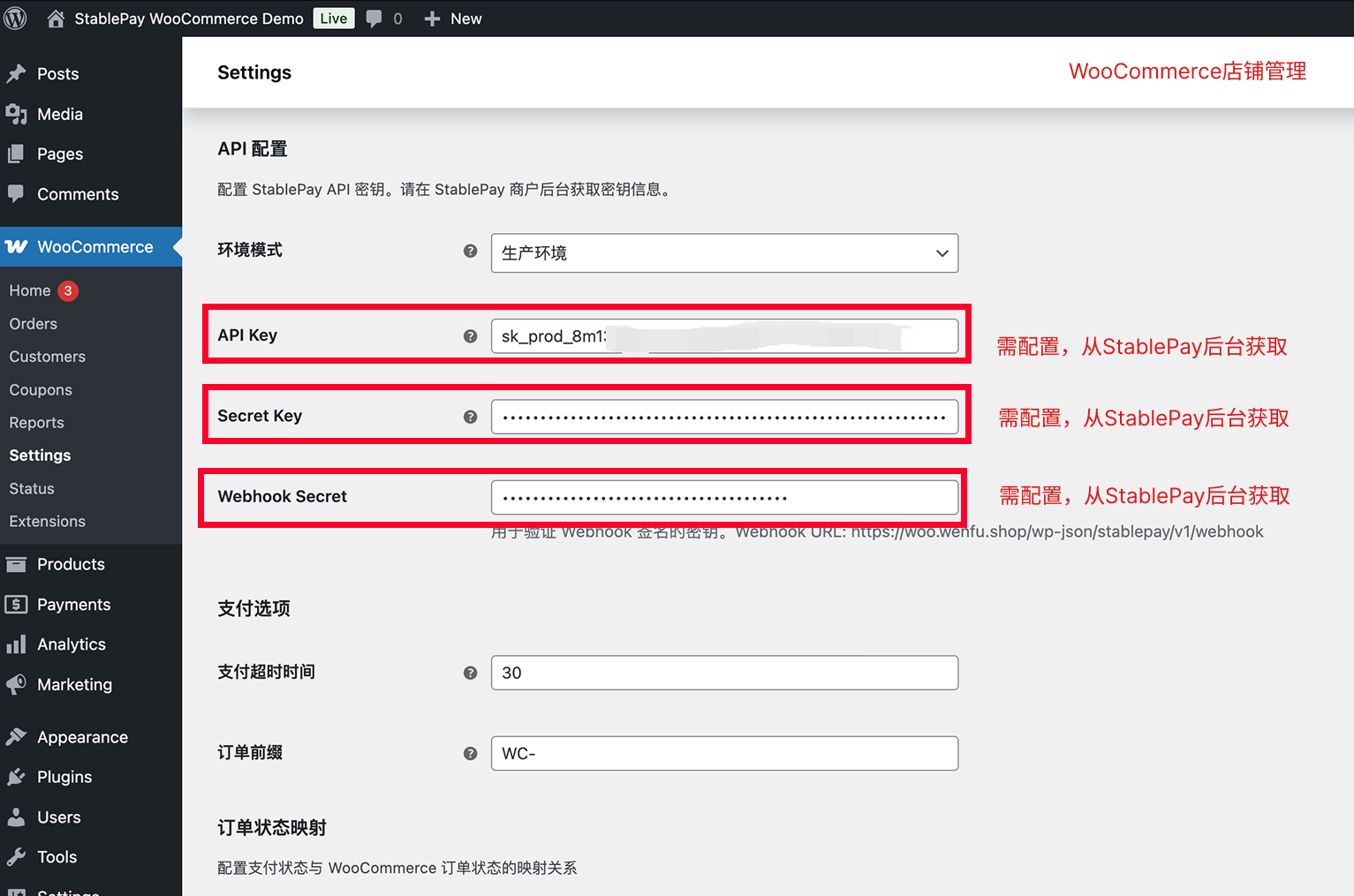
3.3 API 配置

配置项说明示例
API Key从 StablePay 后台获取的 API Keyak_xxxxxxxx
Secret Key从 StablePay 后台获取的签名密钥sk_xxxxxxxx
Webhook Secret从 StablePay 后台获取的 Webhook 验证密钥whsec_xxxxxxxx

WooCommerce 插件配置页面

SettingDescriptionExample
API KeyAPI Key from StablePay Portalak_xxxxxxxx
Secret KeySigning key from StablePay Portalsk_xxxxxxxx
Webhook SecretWebhook verification key from StablePay Portalwhsec_xxxxxxxx

WooCommerce 插件配置页面

步骤 1:登录 StablePay 商户后台,进入店铺管理

StablePay 商户后台

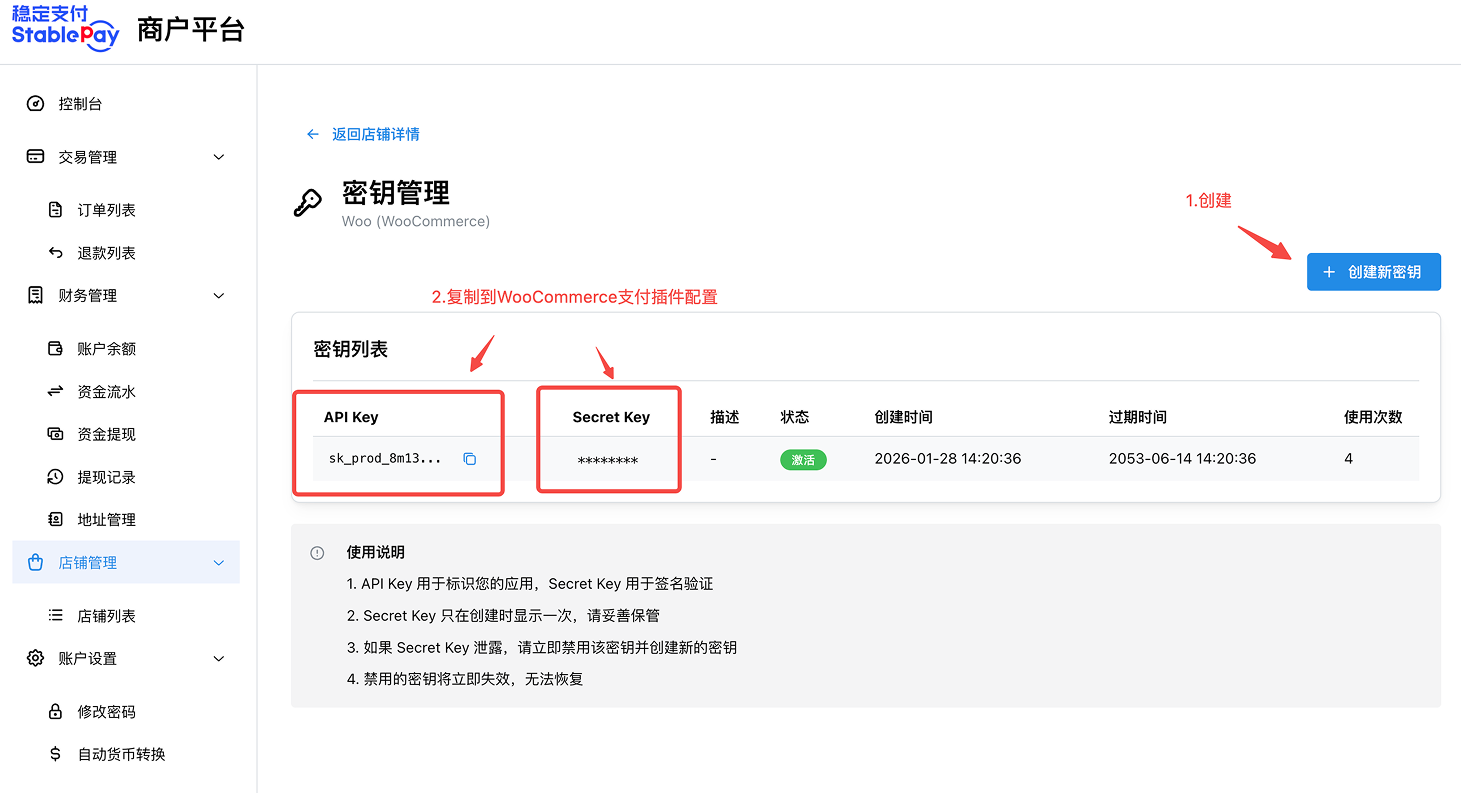
步骤 2:创建 API Key

创建 API Key

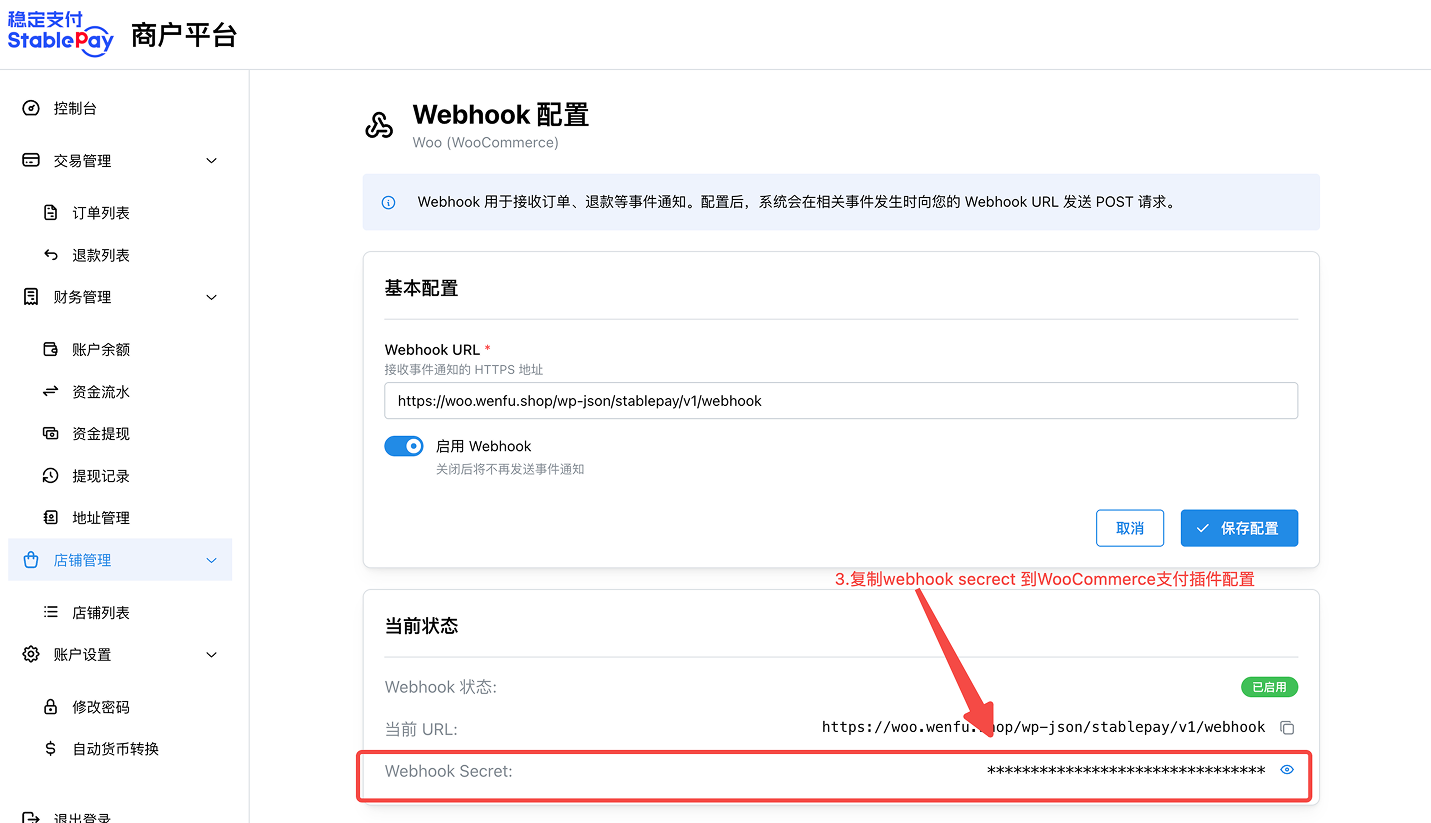
步骤 3:获取 Webhook Secret

获取 Webhook Secret

Step 1: Log in to StablePay Merchant Portal and go to Store Management

StablePay Merchant Portal

Step 2: Create API Key

Create API Key

Step 3: Get Webhook Secret

Get Webhook Secret

⚠️ 安全提示: Secret Key 和 Webhook Secret 为敏感信息,请勿泄露给他人。

⚠️ Security Notice: Secret Key and Webhook Secret are sensitive credentials. Do not share them with others.

3.4 配置 Webhook

Webhook 用于实时接收支付状态通知。配置完成后,插件会自动生成 Webhook URL。

Webhook is used to receive real-time payment status notifications. After configuration, the plugin will automatically generate a Webhook URL.

Webhook URL 格式:

https://your-domain.com/wp-json/stablepay/v1/webhook

请将此 URL 配置到 StablePay 商户后台:

  1. 登录 StablePay 商户后台
  2. 进入 店铺管理 页面,管理Webhook URL

注意

这里的Webhook URL 要通过WordPress后台查看,非店铺的URL地址

WordPress查看WebhookURL
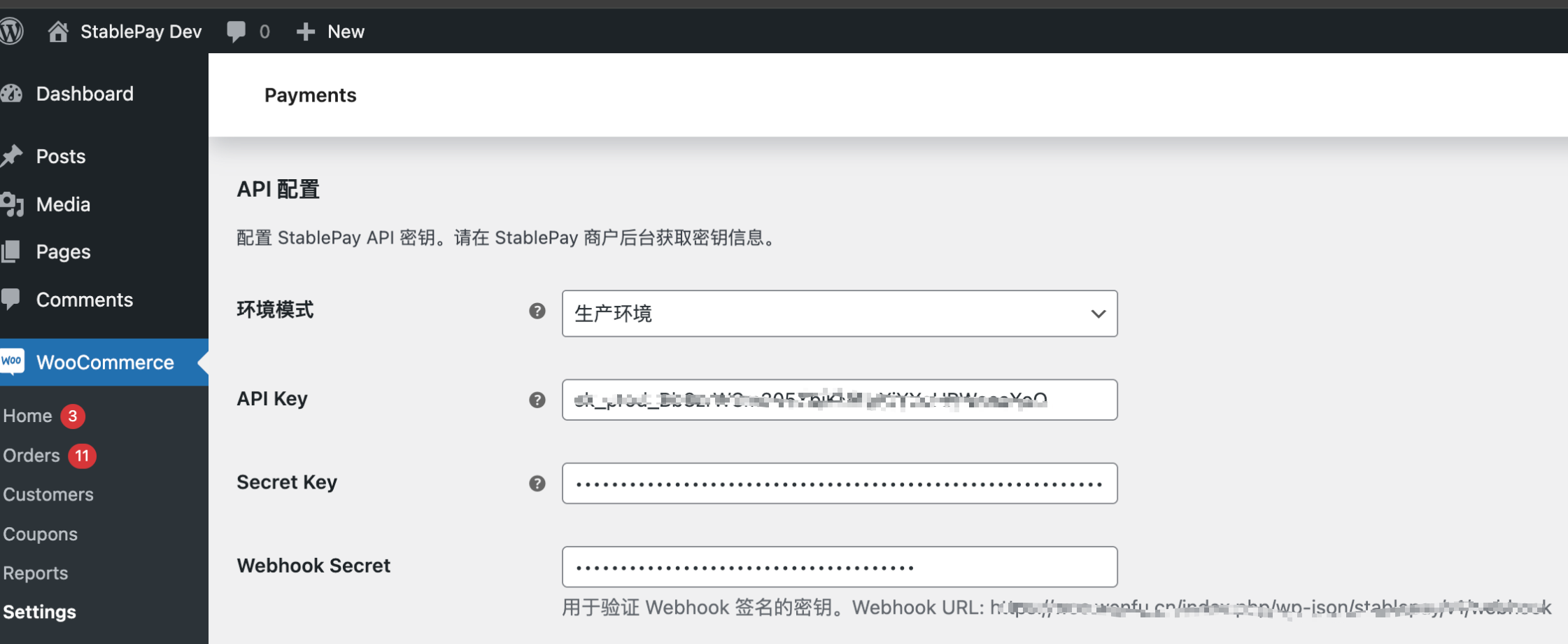
Configure this URL in StablePay Merchant Portal:

  1. Log in to StablePay Merchant Portal
  2. Navigate to Store Management and manage your

注意

The Webhook URL must be retrieved from your WordPress admin Portal

How to find the Webhook URL in WordPress

3.5 支付选项

配置项说明默认值
支付超时时间支付会话有效期(分钟)30
订单前缀StablePay 订单号前缀,便于识别来源WC-
SettingDescriptionDefault
Payment TimeoutPayment session validity period (minutes)30
Order PrefixStablePay order number prefix for identificationWC-

四、测试验证

配置完成后,建议进行一笔小额测试订单,确认支付流程正常。

After configuration, it's recommended to place a small test order to verify the payment flow.

4.1 验证清单

  • [ ] 结账页面能看到 StablePay 支付方式
  • [ ] 选择 StablePay 支付后能正常跳转到收银台
  • [ ] 支付完成后能自动跳回商户网站
  • [ ] 订单状态能自动更新为「处理中」
  • [ ] 订单详情页能看到 StablePay 支付信息
  • [ ] StablePay payment method is visible on checkout page
  • [ ] Selecting StablePay redirects to the checkout page correctly
  • [ ] After payment, user is redirected back to merchant site
  • [ ] Order status automatically updates to "Processing"
  • [ ] Order details page shows StablePay payment information

五、日常运营

5.1 查看订单支付信息

  1. 进入 WordPress 后台 → WooCommerce → 订单
  2. 点击订单号查看详情
  3. 在「StablePay 支付信息」模块可查看:
    • 支付会话 ID
    • 支付币种
    • 实收金额
    • 交易哈希(可在区块链浏览器查看)
  1. Go to WordPress Admin → WooCommerce → Orders
  2. Click on an order number to view details
  3. In the "StablePay Payment Information" section, you can view:
    • Payment Session ID
    • Payment Currency
    • Amount Received
    • Transaction Hash (viewable on blockchain explorer)

5.2 处理退款

  1. 在订单详情页点击「退款」
  2. 输入退款金额和原因
  3. 点击「通过 StablePay 退款」
  4. 等待退款处理完成

退款说明:

  • 仅已支付订单可退款
  • 支持全额退款和部分退款
  • 退款期限为支付后 180 天内
  • 退款将原路返回到消费者钱包
  1. Click "Refund" on the order details page
  2. Enter refund amount and reason
  3. Click "Refund via StablePay"
  4. Wait for refund processing to complete

Refund Notes:

  • Only paid orders can be refunded
  • Full and partial refunds are supported
  • Refund period is within 180 days after payment
  • Refunds are returned to the customer's wallet

六、常见问题

Q1: 插件激活失败怎么办?

检查项:

  • PHP 版本是否 ≥ 7.4
  • WordPress 版本是否 ≥ 5.8
  • WooCommerce 是否已安装并激活
  • cURL 扩展是否启用

Check the following:

  • PHP version is 7.4 or higher
  • WordPress version is 5.8 or higher
  • WooCommerce is installed and activated
  • cURL extension is enabled

Q2: 支付成功但订单状态未更新?

可能原因:

  • Webhook URL 未配置或配置错误
  • Webhook Secret 不正确
  • 服务器防火墙阻止了回调请求

解决方案:

  1. 确认 Webhook URL 已正确配置到 StablePay 后台
  2. 检查 Webhook Secret 是否一致
  3. 检查服务器防火墙设置
  4. 查看日志确认是否收到 Webhook 请求

Possible causes:

  • Webhook URL not configured or incorrect
  • Webhook Secret is incorrect
  • Server firewall blocking callback requests

Solutions:

  1. Verify Webhook URL is correctly configured in StablePay Portal
  2. Check Webhook Secret matches
  3. Check server firewall settings
  4. Check logs to confirm if Webhook request was received

七、技术支持

如有任何问题,请通过以下方式联系我们:

  • 官网:https://stablepay.co
  • 商户后台:https://merchant.stablepay.co
  • 技术支持邮箱:support@stablepay.co
  • 文档中心:https://docs.stablepay.co

For any questions, please contact us through:

  • Website: https://stablepay.co
  • Merchant Portal: https://merchant.stablepay.co/#/auth/login
  • Support Email: support@stablepay.co
  • Documentation: https://docs.stablepay.co
最后更新 / Last Updated: 2026/2/28 10:20
Prev
Shopify
Next
Shoplazza