首页产品文档APISaaS平台
首页
产品文档
支付产品能力自动货币转换
API
接入准备支付服务退款服务Webhook 通知
SaaS平台
ShopifyWooCommerceShoplazzaSHOPYY
  • Shopify
  • WooCommerce
  • Shoplazza
  • SHOPYY
首页/SaaS平台/Shopify
StablePay 开发者文档
Home
Product
API
SaaS
Login
Register
GitHub
Home
Product
API
SaaS
Login
Register
GitHub
  • SaaS 电商平台 / Platform

    • Shopify
    • WooCommerce
    • Shoplazza
    • SHOPYY

Shopify 安装指南

本指南将帮助您在 Shopify 店铺中集成 StablePay 稳定币支付功能。

This guide will help you integrate StablePay stablecoin payment functionality into your Shopify store.

1. 创建您的Shopify店铺

  1. 登录StablePay 商户后台
  2. 进入 店铺管理 页面,点击 [创建店铺],渠道类型 选择Shopify,提交后等待StablePay审核
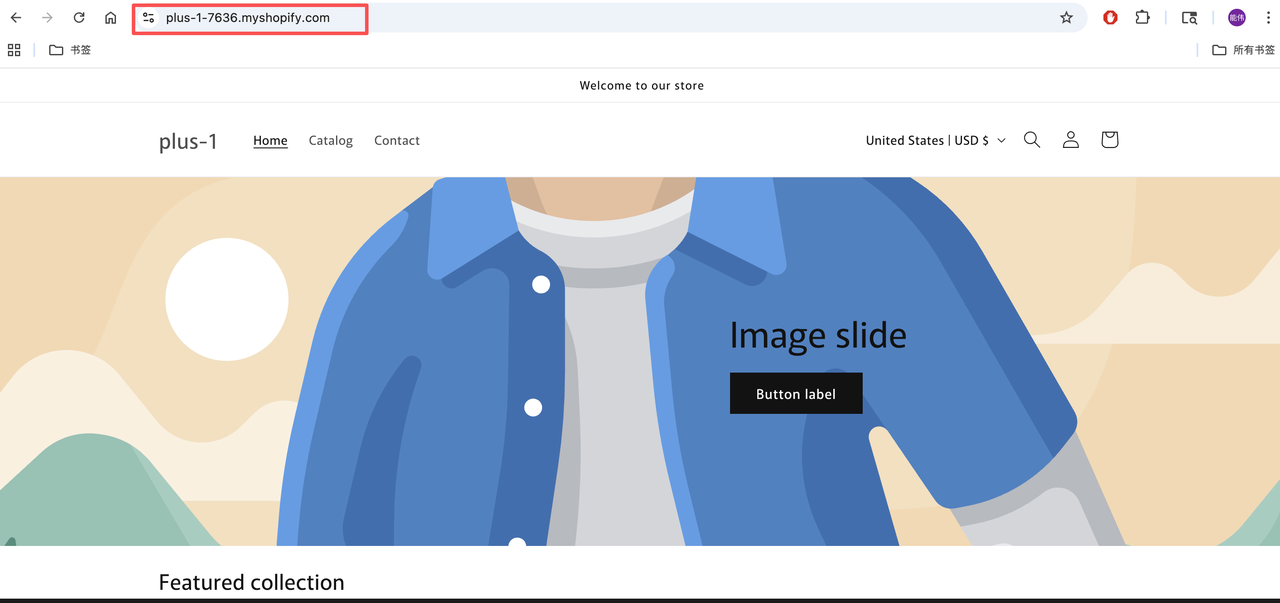
  3. 审核通过后,您可以通过店铺详情页获得您的支付插件安装链接
  1. Log in to the StablePay Merchant Portal.
  2. Navigate to the Store Management page and click [Create Store].Select Shopify as the Channel Type and click submit. Please wait for StablePay's review and approval.
  3. Once approved, you can obtain your payment plugin installation link from the Store Details page.

从店铺前台获取地址

Get address from store frontend


2. 使用 StablePay 支付插件链接安装

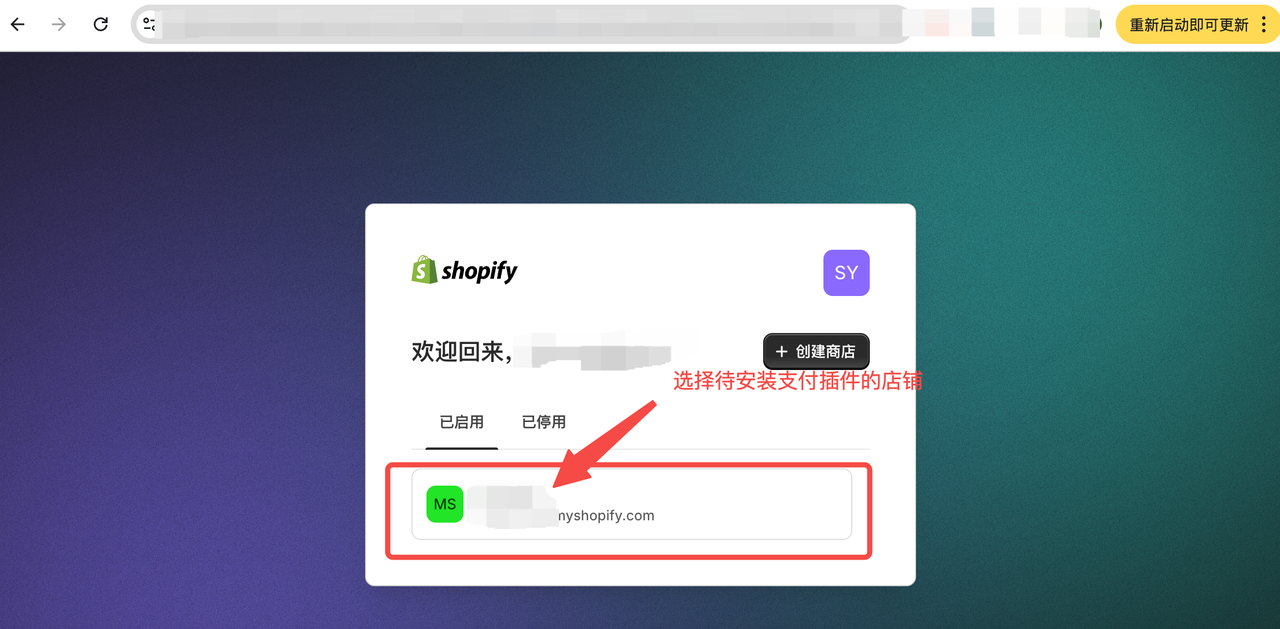
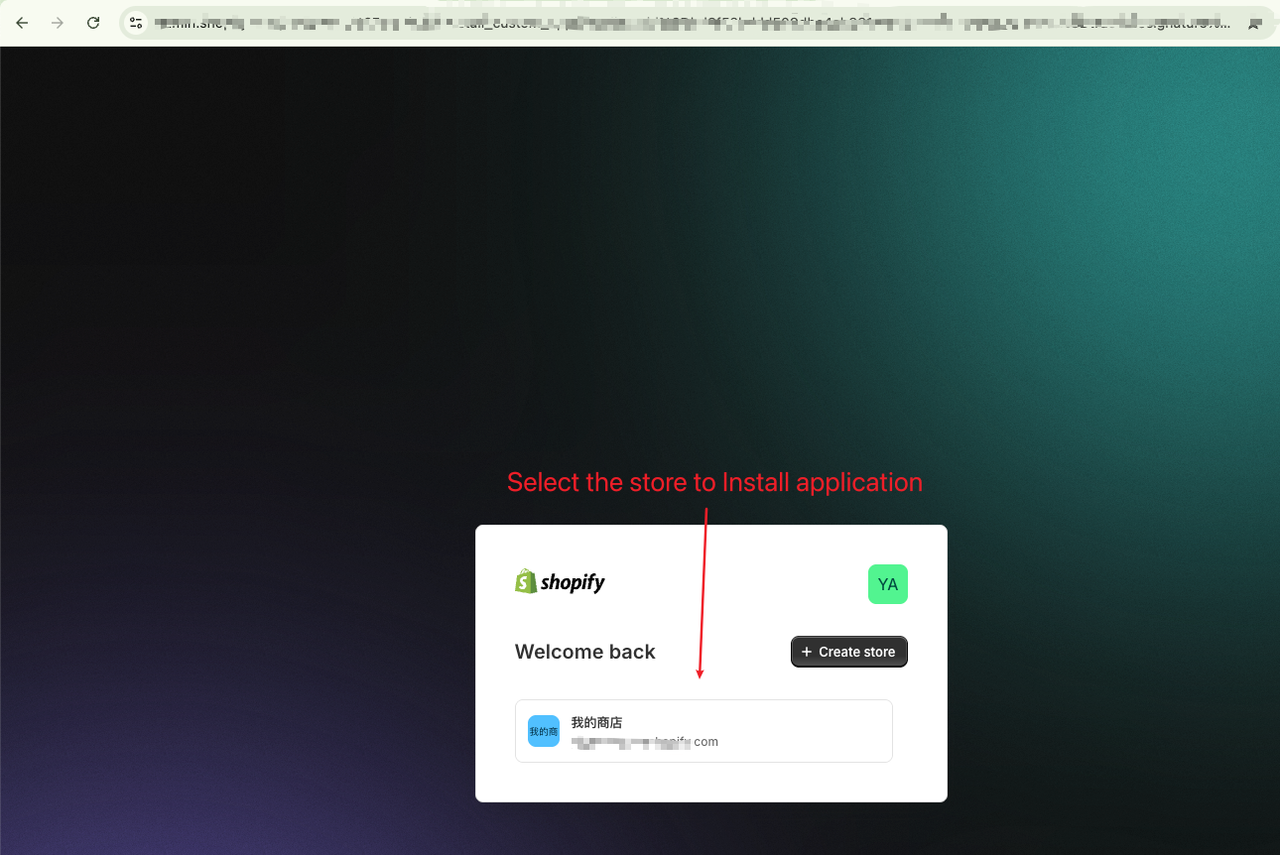
步骤 2.1:访问安装链接

  • 确保已登录您的 Shopify 商店后台
  • 在浏览器中访问安装链接

访问安装链接

  • Make sure you're logged into your Shopify store admin
  • Visit the installation link in your browser

Visit installation link

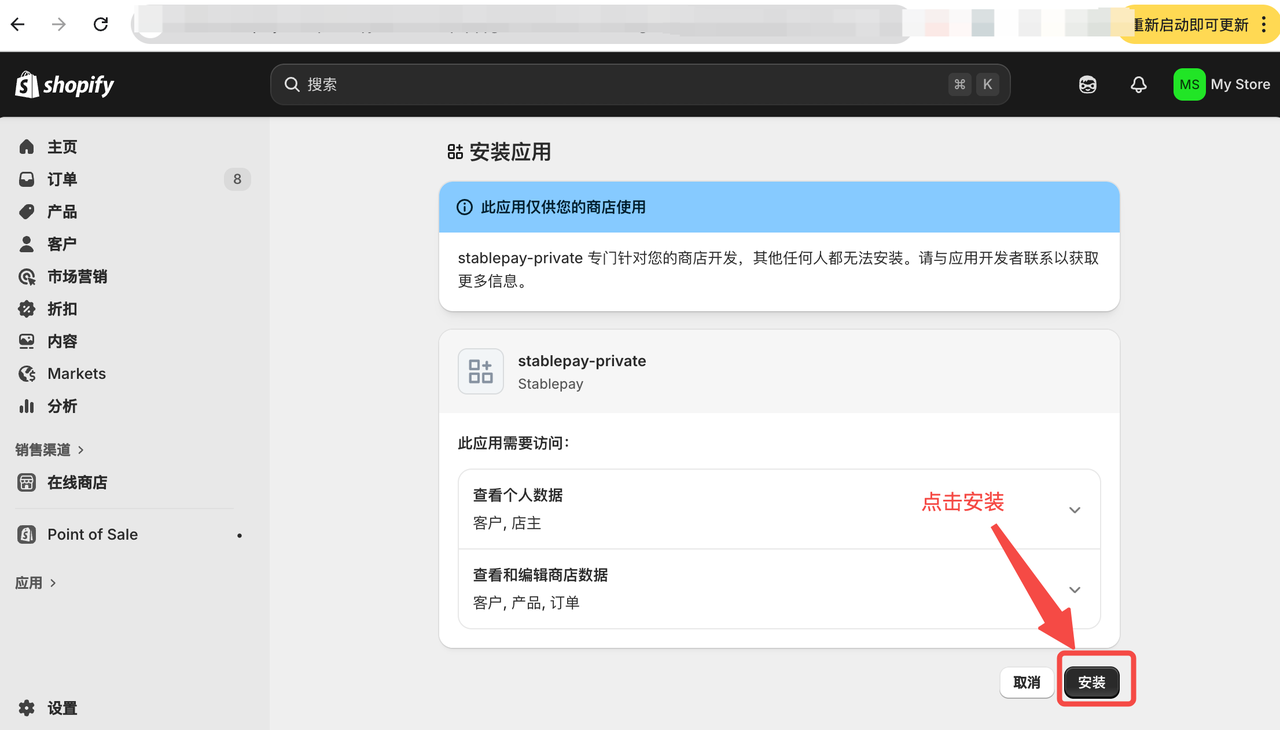
步骤 2.2:安装应用

点击 "安装" 按钮

点击安装

Click the "Install" button

Click install

步骤 2.3:完成安装

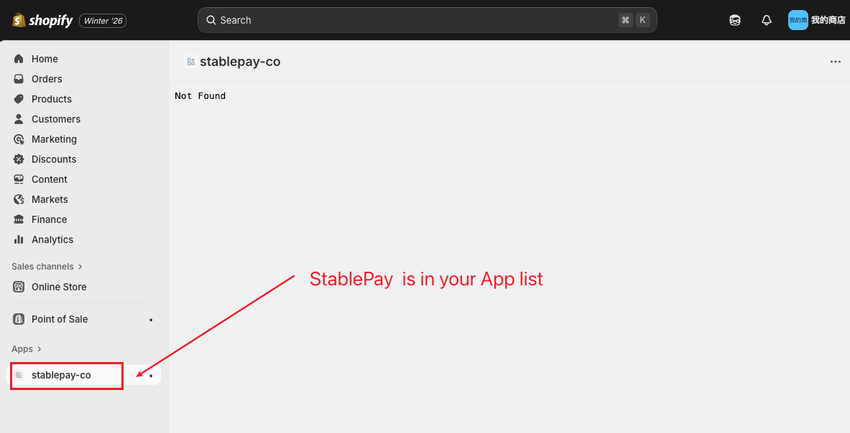
安装完成

Installation complete


3. 访问预配置链接完成预配置

StablePay 对接人员提供预配置链接,将链接放到浏览器并访问,完成预配置。

提示 "success",表示预配置成功。

预配置成功

The StablePay team will provide a pre-configuration link. Open the link in your browser to complete the pre-configuration.

A "success" message indicates successful pre-configuration.

Pre-configuration successful


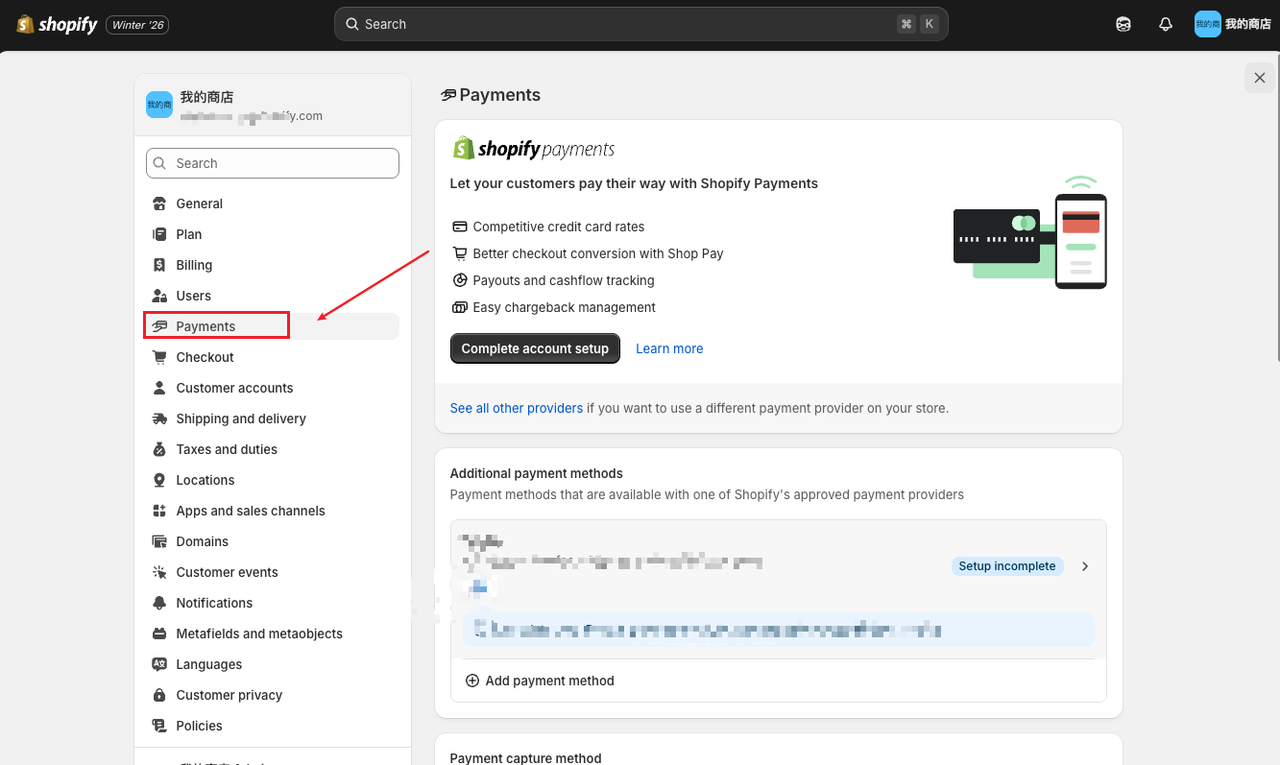
4. 配置稳定币收款方式

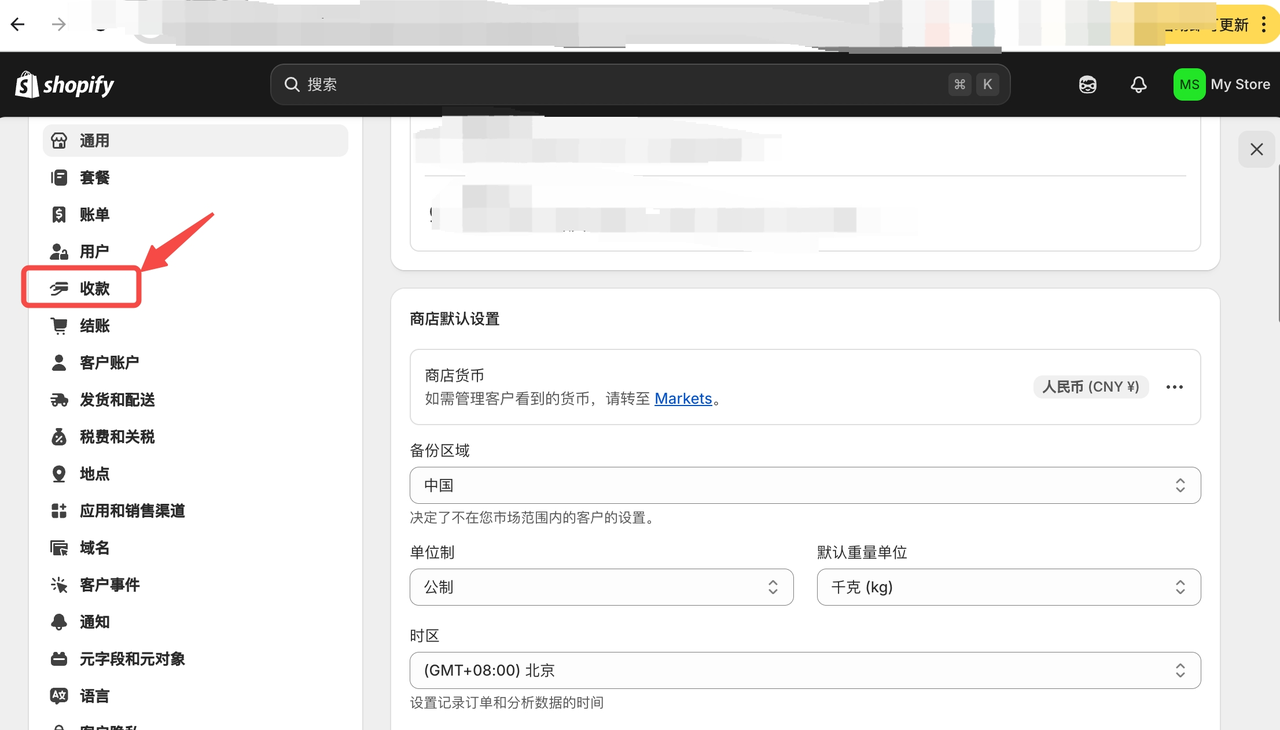
步骤 4.1:进入店铺设置

进入店铺设置

Enter store settings

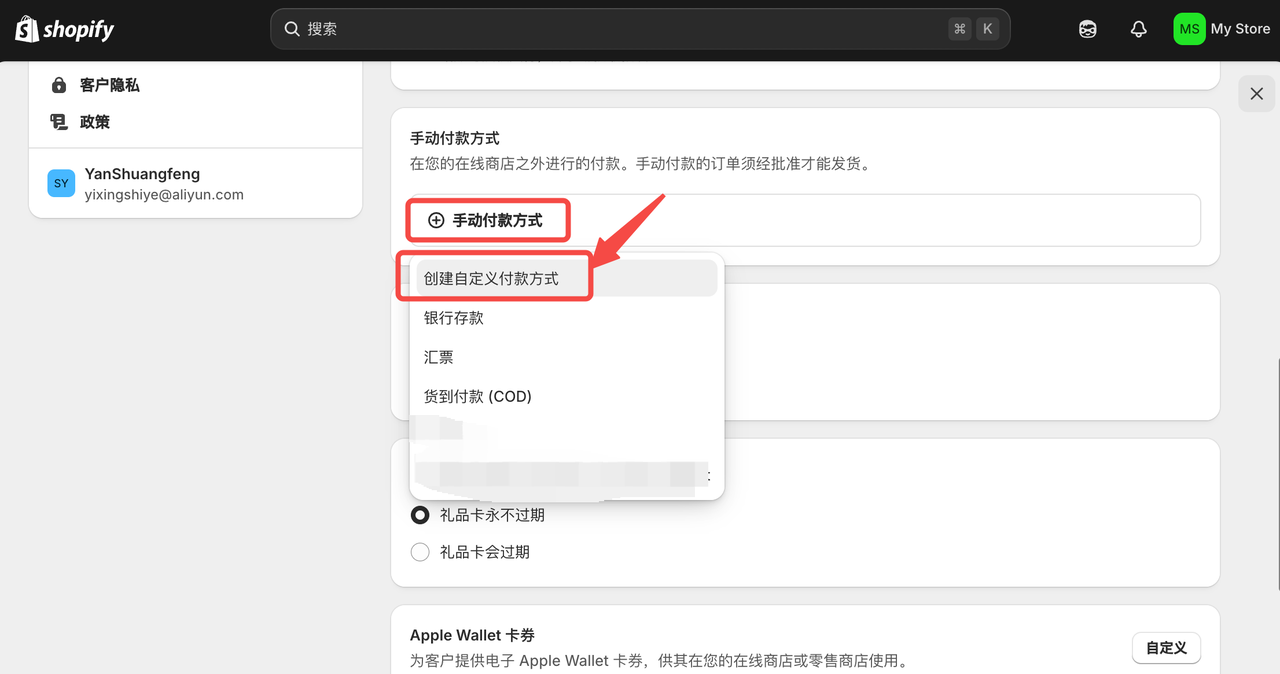
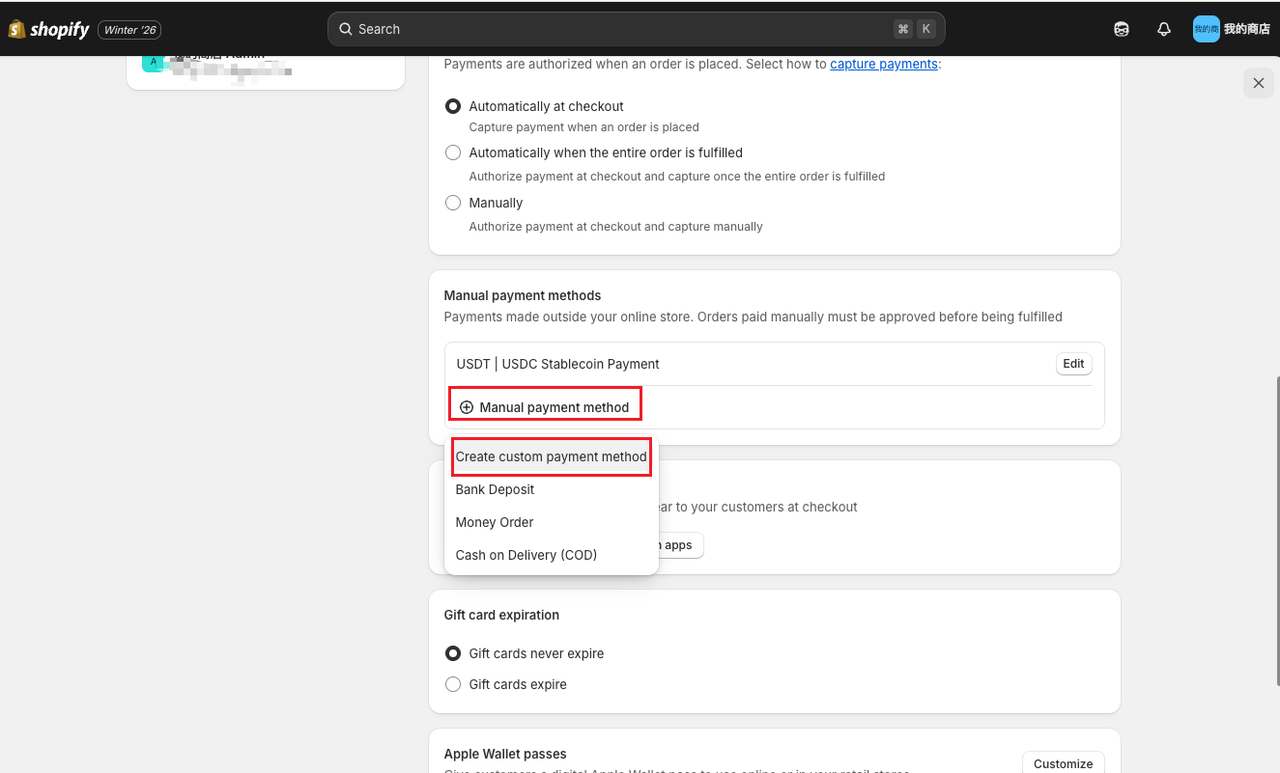
步骤 4.2:自定义添加稳定币收款方式

添加收款方式步骤1

添加收款方式步骤2

添加收款方式步骤3

Add payment method step 1

Add payment method step 2

Add payment method step 3

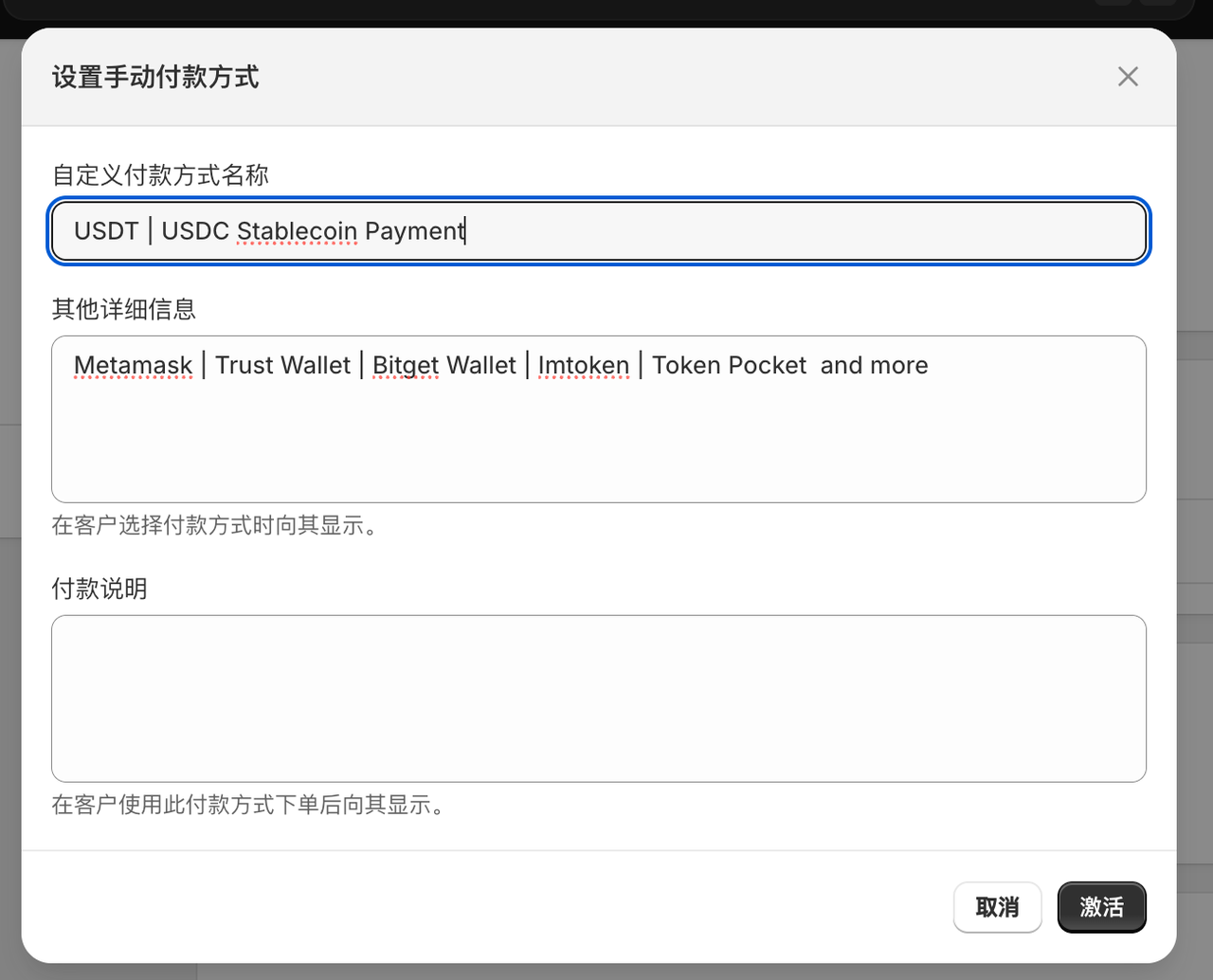
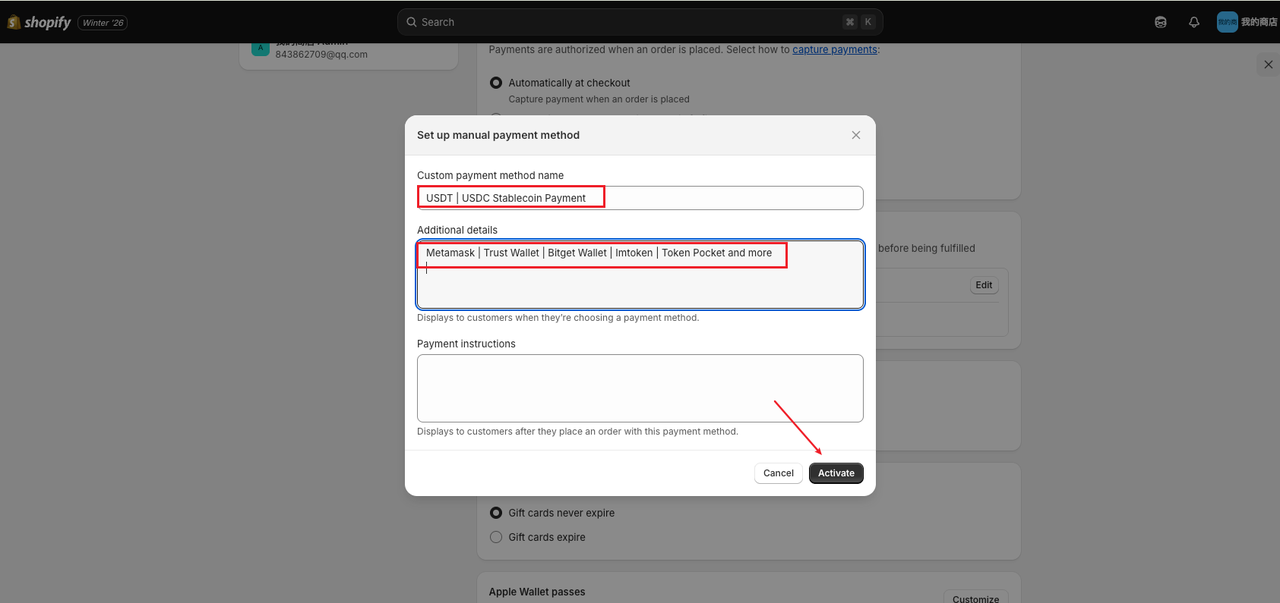
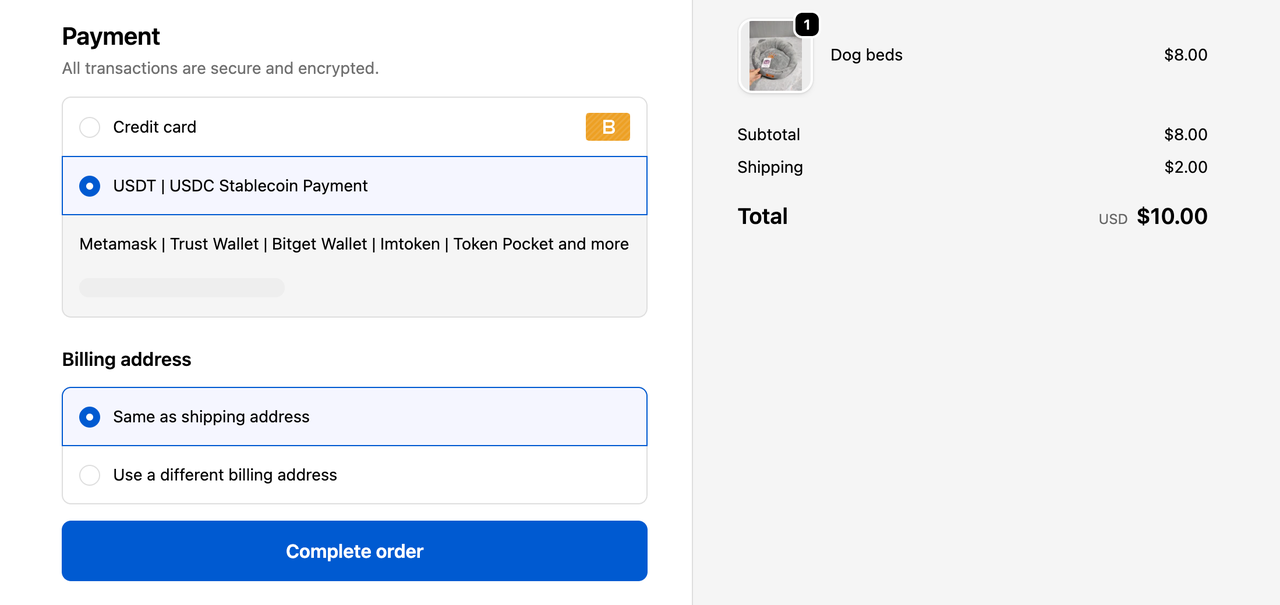
步骤 4.3:填写支付方式信息

自定义付款方式名称:

USDT | USDC Stablecoin Payment

其他详细信息:

Metamask | Trust Wallet | Bitget Wallet | Imtoken | Token Pocket and more

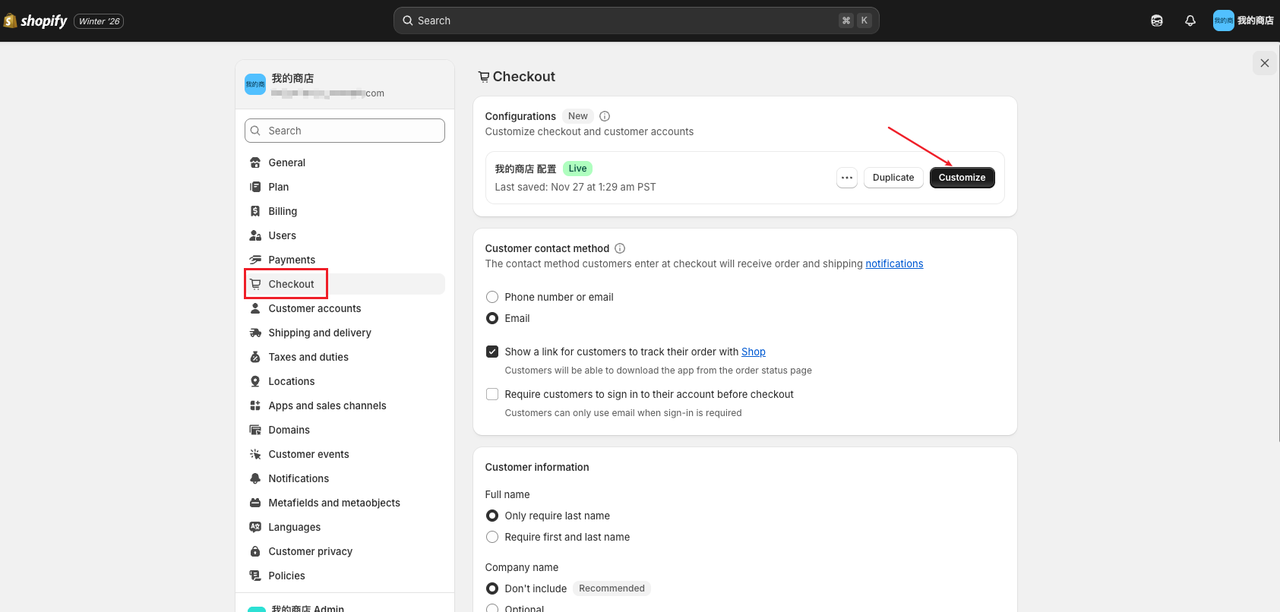
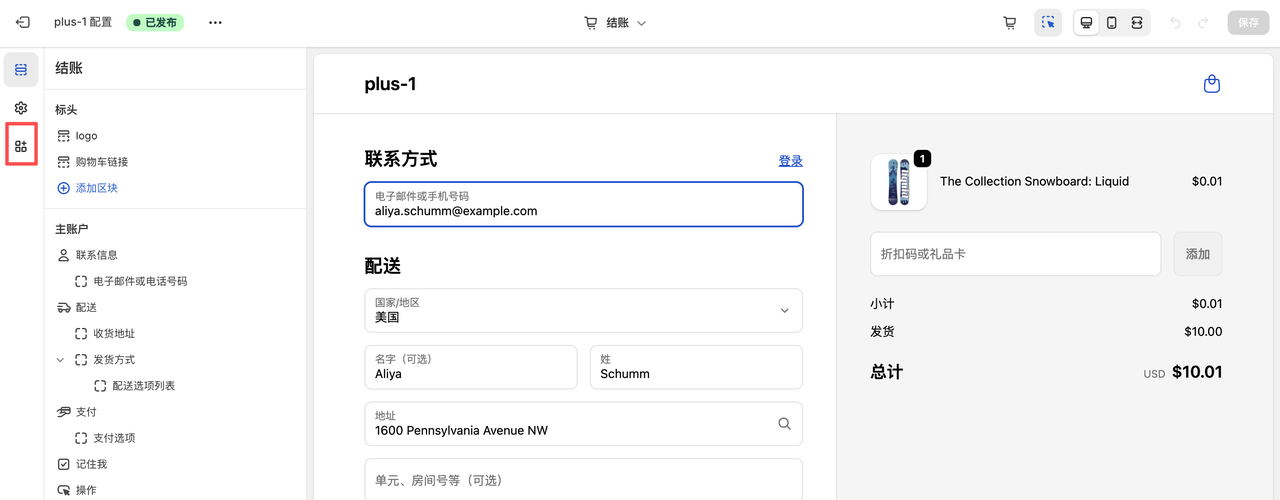
5. 配置结账流程

步骤 5.1:配置 UI 界面
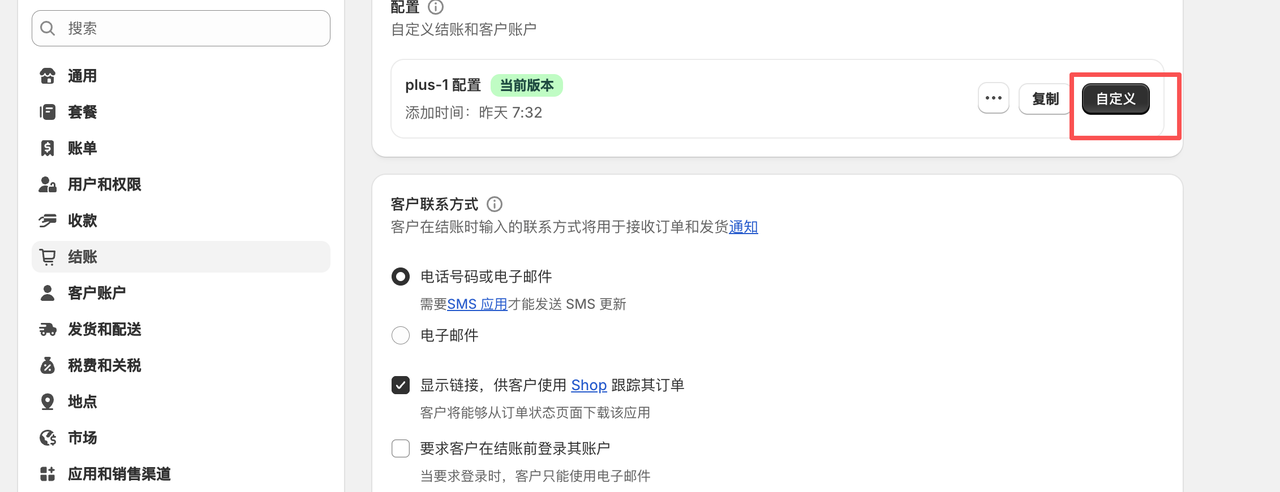
配置结账流程

Configure checkout process

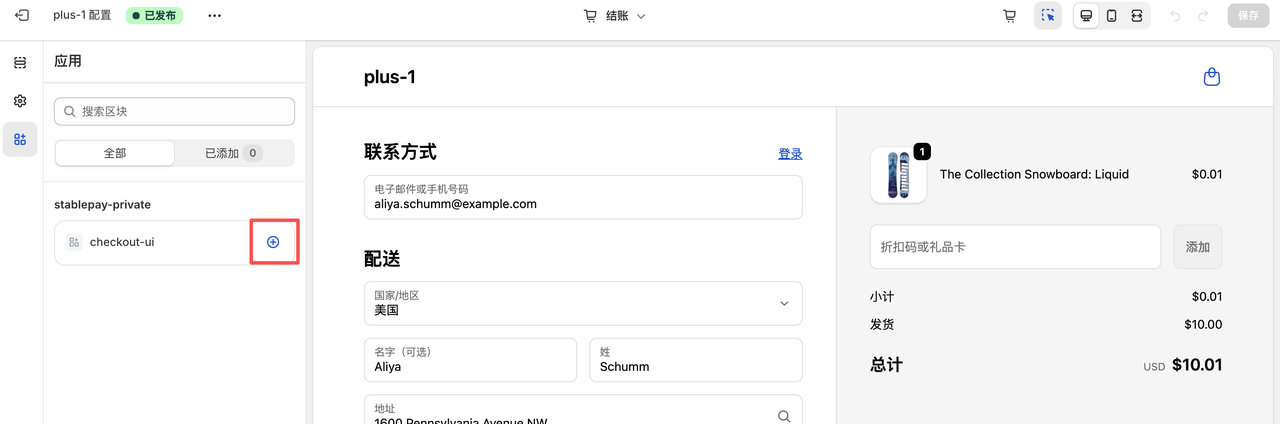
步骤 5.2:点击自定义

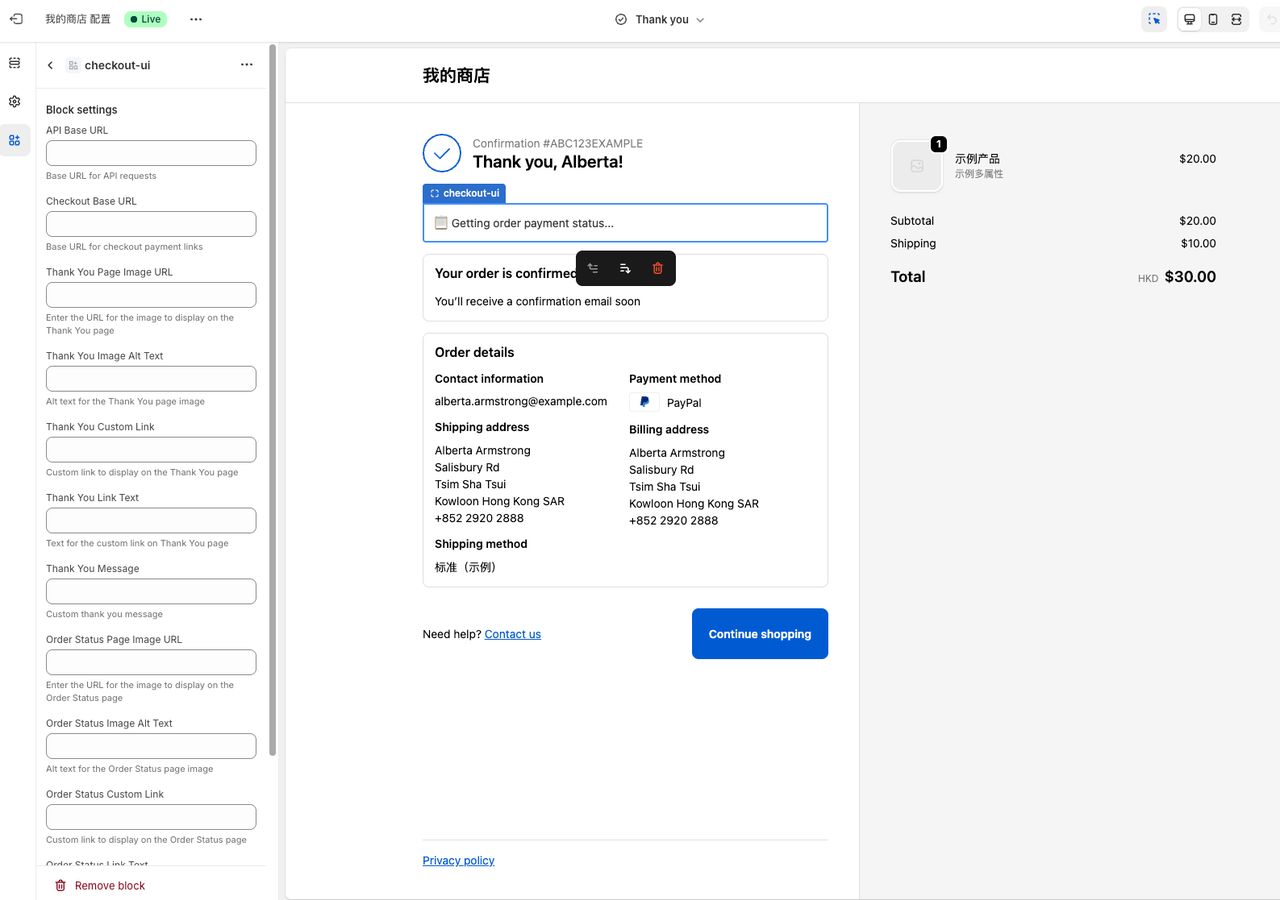
点击自定义,会出现下面界面:

自定义界面

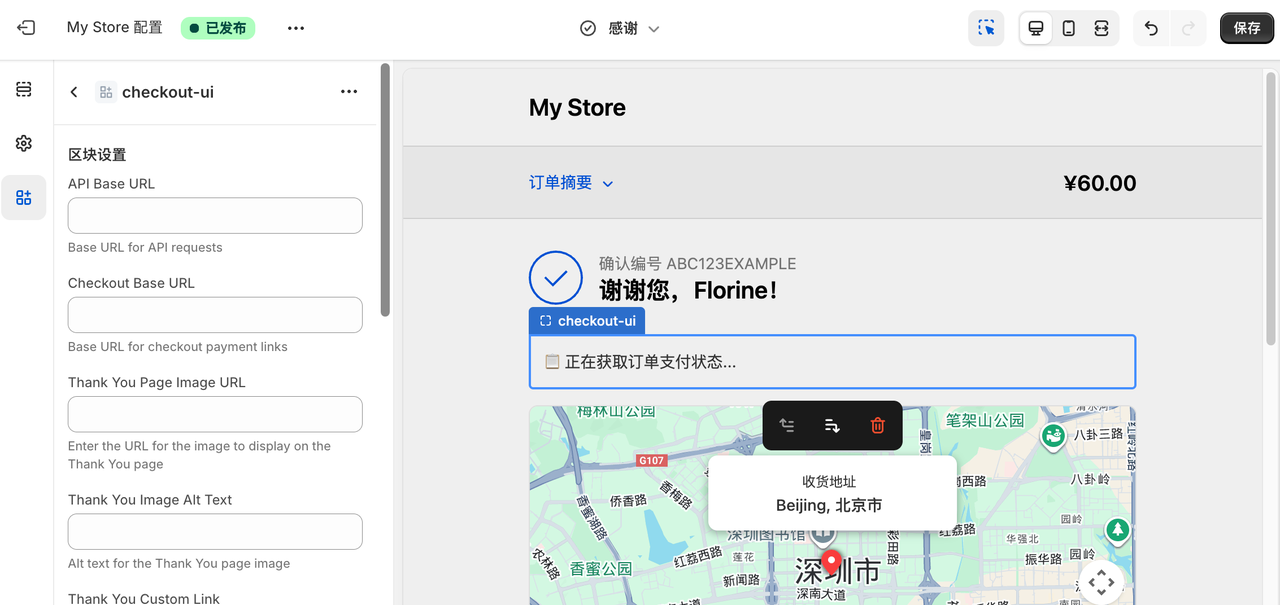
配置详情

配置详情

Click customize to see the following interface:

Customize interface

Configuration details

Configuration details

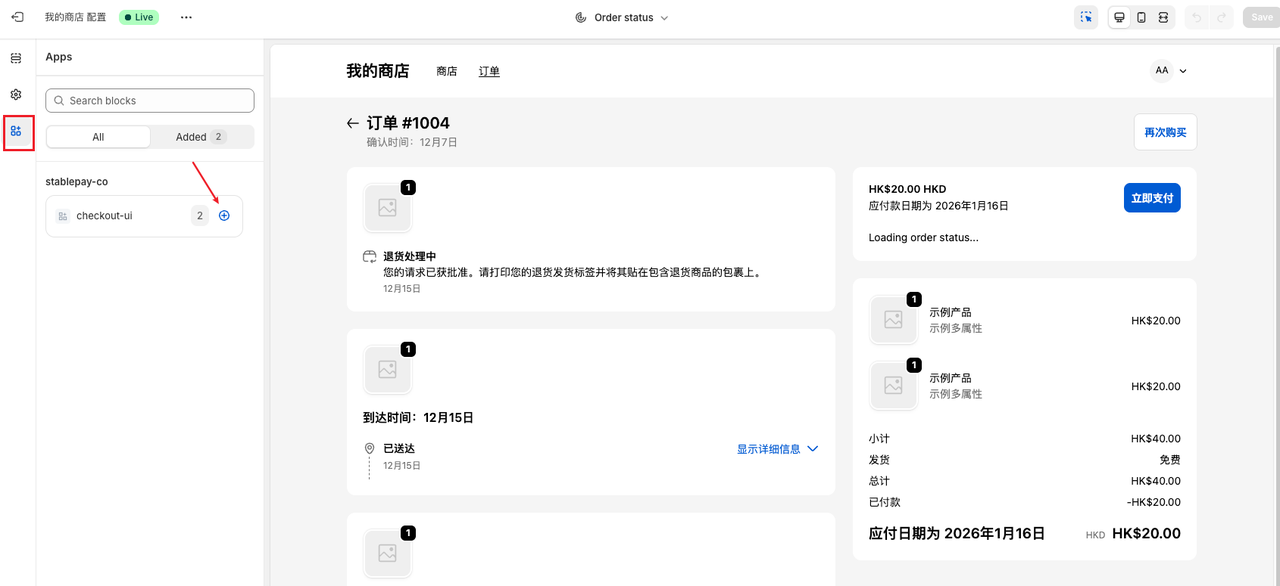
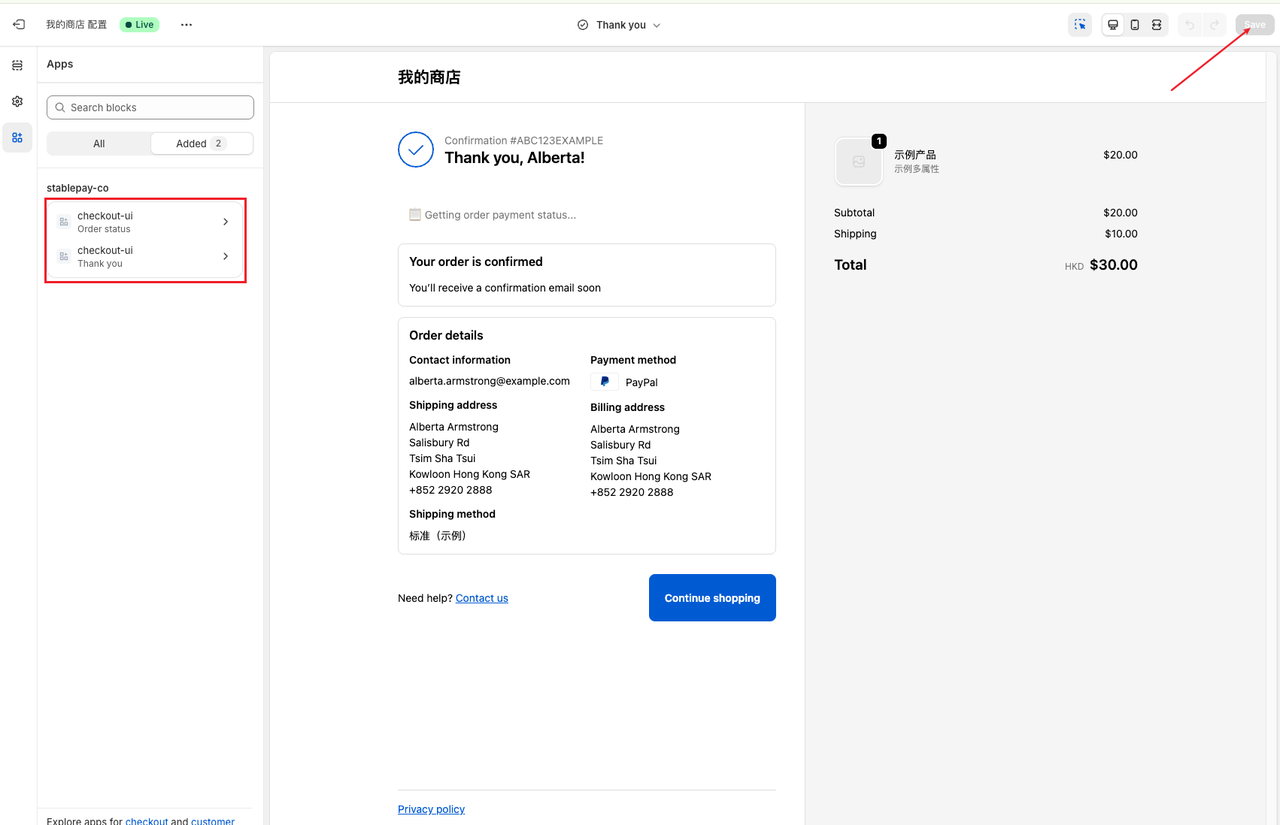
步骤 5.3:添加感谢和订单状态

同时添加 感谢 和 订单状态,最后 保存生效。
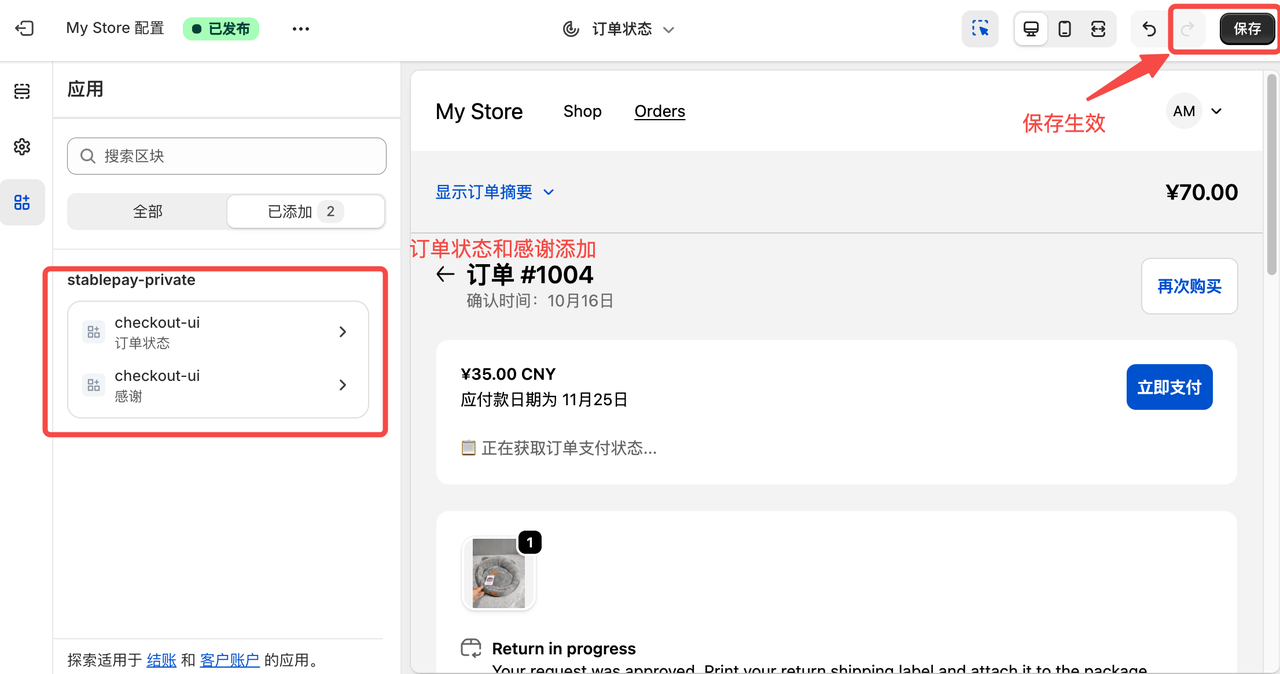
添加感谢和订单状态

Add both Thank You and Order Status pages, then Save to apply changes.

Add thank you and order status


6. 配置完成,开始用 StablePay 收款

配置完成

Configuration complete

最后更新 / Last Updated: 2026/1/28 21:06
Next
WooCommerce